Whether you’re measuring sales growth, tracking employee performance, or comparing this year’s numbers to last year — the percentage increase formula in Excel is something you’ll use almost every week. This guide gives you the exact formula, real examples, and every variation you’ll ever need.
What Is Percentage Increase?
Percentage increase measures how much a value has grown relative to its original amount. It tells you not just that something went up, but by exactly how much — expressed in a way that’s easy to compare, share in reports, and understand at a glance.
Think about these everyday situations:
- Your monthly revenue went from $20,000 to $24,000 — that’s a 20% increase
- A product’s price jumped from $50 to $57.50 — that’s a 15% increase
- Website traffic grew from 5,000 to 6,500 visitors — that’s a 30% increase
In each case, the percentage increase gives you a single, clean number that tells the story — and Excel makes calculating it incredibly fast once you know the formula.
Percentage increase specifically refers to when a value goes up. Percentage change is the broader term that covers both increases and decreases — it can be positive (increase) or negative (decrease). The formula in Excel is the same for both; the sign of the result tells you which direction the change went.
The Percentage Increase Formula in Excel
The math behind percentage increase is simple and has not changed since your school days:
Percentage Increase = (New Value − Old Value) ÷ Old Value × 100
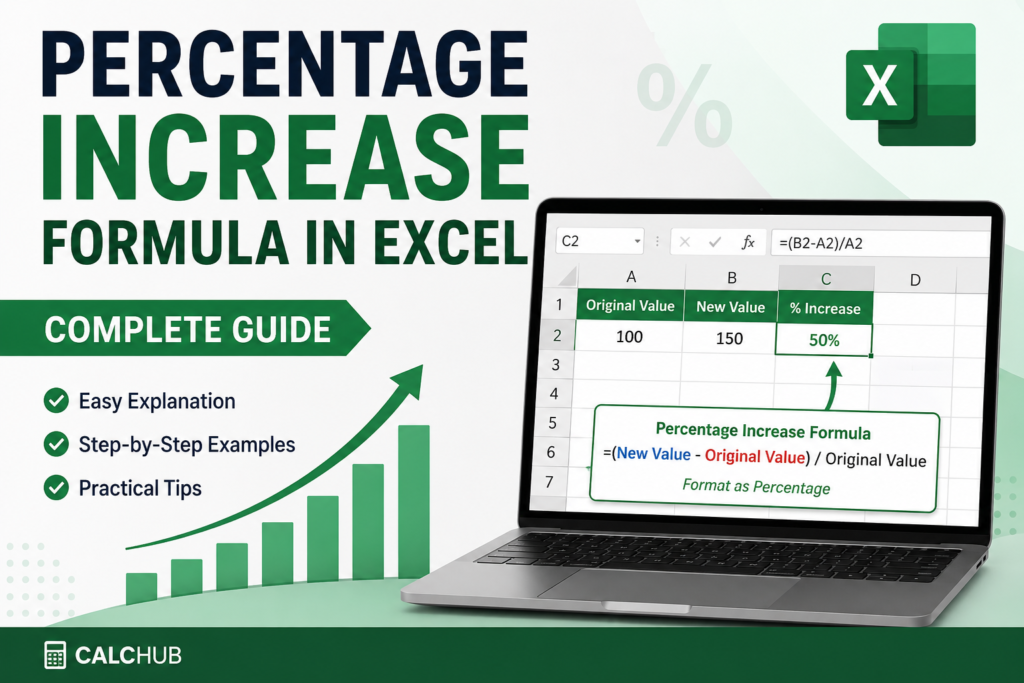
In Excel, where your old value is in cell A2 and your new value is in cell B2, this becomes:
That’s the entire formula. Two cells, one subtraction, one division. The result is a decimal that Excel converts to a percentage when you format the cell correctly.
The math formula ends with ×100. In Excel, skip that step. Just format the cell as a Percentage (Ctrl+Shift+%) and Excel handles the conversion automatically. If you multiply by 100 AND apply percentage formatting, your result will be 100 times too large.
Step-by-Step: Percentage Increase Formula in Excel
Let’s walk through the exact process from scratch. We’ll use monthly sales data as our example — a scenario most people deal with regularly.
Enter Your Data — Old Value in Column A, New Value in Column B
Label column A as your baseline (last month, last year, starting point) and column B as your current value. Always keep old on the left, new on the right — this prevents formula errors later.
Click Cell C2 and Type the Formula
Click on cell C2, type the formula below exactly, then press Enter. Do not add spaces inside the formula.
Format the Cell as a Percentage
With C2 still selected, press Ctrl+Shift+% (Windows) or ⌘+Shift+% (Mac). The raw decimal (0.2) instantly becomes a readable percentage (20%). You can also go to Home → Number Group → % button.
The result +20.00% tells you that sales increased by 20% from last month to this month.
Drag the Formula Down to Fill All Rows
Click the small green square at the bottom-right corner of C2 (called the fill handle) and drag it down to C3, C4, and so on. Excel adjusts the formula for every row automatically.
After applying percentage format, use the Increase Decimal button (Home tab → Number group) to show 1 or 2 decimal places. For reports, 2 decimal places (20.00%) looks more professional than just 20%.
Free Percentage Increase Calculator — No Excel Needed
Don’t have Excel open? Or working on mobile? Our free online calculator gives you the same result instantly — just type your two numbers and get the percentage increase in one click.
🚀 Free Tool — Instant Results
Percentage Increase Calculator
Enter your old and new values — get the percentage increase instantly with the full formula breakdown. No sign-up, no Excel required.
Real-World Examples — Percentage Increase Formula in Action
The formula never changes. What changes is the data you plug in. Here are five real scenarios you’ll encounter regularly.
📈 Example 1: Monthly Sales Growth
Your team’s January revenue was $48,000. February brought in $55,200. What was the month-over-month growth?
February was 15% stronger than January — a clear win to highlight in the monthly report.
🛒 Example 2: Product Price Increase
A supplier raised a component’s price from $12.50 to $14.75. How much did costs go up?
An 18% cost increase on a component can significantly impact your margins — this formula flags it immediately.
👥 Example 3: Employee Performance Score
An employee’s quarterly performance score went from 72 to 89. What’s their improvement percentage?
Nearly 24% improvement in one quarter is excellent. This makes performance reviews objective and data-driven.
🌐 Example 4: Website Traffic Growth
Last quarter: 12,400 visitors. This quarter: 16,120 visitors. Traffic growth rate?
30% traffic growth in a quarter is significant — the kind of number that justifies continuing an SEO or content strategy.
💰 Example 5: Year-Over-Year Revenue
Last year total revenue: $1,200,000. This year: $1,440,000. Annual growth rate?
20% year-over-year growth is a strong headline number for investor reports, board presentations, and annual reviews.
How to Apply the Formula to an Entire Column
Most real datasets have dozens or hundreds of rows. Here are three fast ways to apply the percentage increase formula to an entire column without typing it in every cell.
Method 1 — Fill Handle (Drag Down)
- Enter the formula in your first data cell (e.g.,
C2) - Format it as a percentage
- Click the green square at the bottom-right of C2
- Drag it down to the last row of your data
Method 2 — Double-Click Fill Handle (Instant)
- Enter and format the formula in C2
- Double-click the green square at the bottom-right
- Excel auto-fills all the way down to the last row — no dragging needed
This works when columns A and B already have data. Excel detects the data range and fills exactly to the last row.
Method 3 — Copy and Paste
- Enter and format the formula in C2
- Press Ctrl+C to copy
- Select the range C3:C100 (or however far down you need)
- Press Ctrl+V to paste
Convert your data range to an Excel Table (Ctrl+T). When you add a formula in one cell of a table column, Excel automatically applies it to every row — even new rows you add later. This is the most efficient approach for ongoing reports.
Common Mistakes with the Percentage Increase Formula — And How to Fix Them
These errors catch even experienced Excel users off guard. Here’s what to watch for and exactly how to fix each one.
| ❌ Mistake | What Happens | ✅ Fix |
|---|---|---|
| =(B2-A2)/A2×100 | Result is 100× too large when formatted as % | Remove ×100 completely — Excel’s % format handles it |
| =(A2-B2)/A2 | Swapped values — shows negative when it should be positive | Always: (New − Old) / Old |
| #DIV/0! error | Old value is zero — can’t divide by zero | =IFERROR((B2-A2)/A2,"N/A") |
| No % formatting | Shows 0.2 instead of 20% — confusing in reports | Select cell → Ctrl+Shift+% |
| Locked references | Formula doesn’t adjust when copied down | Use relative references (A2, B2) not absolute ($A$2) |
The Clean Fix for #DIV/0! Errors
When your old value is zero — common with new product launches or first-month tracking — wrap the formula in IFERROR to keep your spreadsheet clean:
Advanced Percentage Increase Techniques in Excel
Show + Sign Automatically for Increases
Excel only shows a minus sign for negative percentages by default. To display a + sign for increases, apply a custom number format:
- Select your percentage cells
- Press Ctrl+1 to open Format Cells
- Choose the Custom category
- Type:
+0.00%;-0.00%;0.00% - Click OK
Now positive results show as +20.00% and negatives as -5.00% — much clearer in reports.
Conditional Formatting — Color Code Increases vs Decreases
Make your spreadsheet visually intuitive with automatic green/red coloring:
- Select your percentage column
- Go to Home → Conditional Formatting → New Rule
- Rule 1: Cell value greater than 0 → fill green, text dark green
- Rule 2: Cell value less than 0 → fill light red, text dark red
Now every increase is visually green and every decrease is red — no need to read every number individually.
Calculate Percentage Increase with a Fixed Baseline
When comparing all values to a single fixed baseline (like January as the benchmark for all 12 months), use an absolute reference so the denominator stays fixed as you drag down:
=(B2–$A$2)/$A$2
// $A$2 locks the reference — it won’t shift when dragged down
Calculate Percentage Increase Instantly
Skip the spreadsheet for quick calculations. Our free online Percentage Calculator gives you instant results with the formula shown — works on any device, no sign-up needed.
Frequently Asked Questions
What is the percentage increase formula in Excel?
The formula is =(B2-A2)/A2 where A2 is the old value and B2 is the new value. After entering the formula, format the cell as a percentage by pressing Ctrl+Shift+%. A positive result means an increase; a negative result means a decrease.
How do I calculate percentage increase for an entire column in Excel?
Enter the formula in the first cell (e.g., C2), format it as a percentage, then either drag the fill handle down, double-click the fill handle for instant auto-fill, or copy and paste to the entire column range.
Why does my percentage increase formula show a number like 0.2 instead of 20%?
You need to format the result cell as a percentage. Select the cell and press Ctrl+Shift+%, or go to Home → Number → click the % button. Excel displays the raw decimal (0.2) until you tell it to show percentages.
What is the formula for percentage increase with a fixed starting value?
Use an absolute reference for the old value: =(B2-$A$2)/$A$2. The dollar signs lock cell A2 so it stays fixed when you drag the formula down — useful for comparing multiple months to a single baseline like January.
How do I handle the #DIV/0! error in a percentage increase formula?
This error occurs when the old value is zero. Wrap the formula: =IFERROR((B2-A2)/A2,"N/A"). This shows “N/A” instead of an error. Replace “N/A” with 0 if you need a number in that cell.
Can I calculate percentage increase without Excel?
Yes. CalcHub’s free Percentage Calculator lets you calculate percentage increase online in seconds — just enter your old and new values and get an instant result with the formula breakdown.
Is the percentage increase formula the same as the percentage change formula?
Yes — the formula is identical: =(New-Old)/Old. The difference is in the result. Percentage change can be positive (increase) or negative (decrease). When the result is positive, it is a percentage increase. When negative, it is a decrease. The formula handles both automatically.