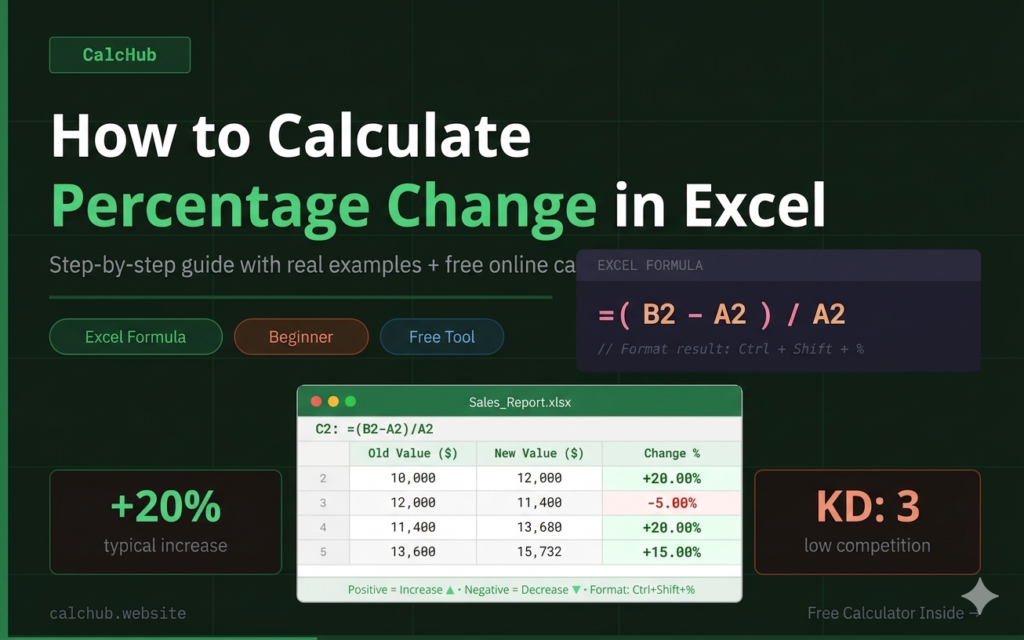
Whether you’re tracking monthly sales, comparing yearly revenue, or analyzing a stock price — percentage change is one of the most used calculations in Excel. This complete guide breaks it all down with real formulas, step-by-step examples, and a free online calculator so you never have to struggle with this again.
What Is Percentage Change?
Percentage change tells you how much a value has increased or decreased relative to its original value. The result is expressed as a percentage, which makes it easy to compare changes across completely different scales — whether you’re looking at a $5 price increase on a $50 product or a $500,000 revenue shift in a quarterly report.
The idea is simple: if your January sales were $10,000 and February sales hit $12,000, the percentage change tells you exactly how much growth happened between those two months — in this case, a 20% increase.
In Excel, this calculation is used everywhere:
- Monthly sales reports
- Budget vs. actual comparisons
- Year-over-year revenue analysis
- Stock price and investment tracking
- Website traffic growth
- Employee performance metrics
Percentage change always compares a new value to a specific old (baseline) value — order matters. Percentage difference compares two values symmetrically with no defined starting point. Use percentage change when tracking growth or decline over time.
The Excel Formula for Percentage Change
The mathematical formula for percentage change is straightforward and has never changed:
Percentage Change = (New Value − Old Value) ÷ Old Value × 100
Translated into Excel syntax, where your old value is in cell A2 and your new value is in cell B2:
Unlike the mathematical formula, you do NOT multiply by 100 in Excel. Instead, format the result cell as a Percentage (Ctrl+Shift+%) and Excel handles the conversion automatically. If you multiply by 100 AND format as percentage, your result will be 100x too large.
Step-by-Step: How to Calculate Percentage Change in Excel
Let’s walk through the exact process using a real example — tracking monthly sales figures for a business. Follow these 4 steps and you’ll have percentage change calculated in under 2 minutes.
Set Up Your Data in Two Columns
Put your Old Value (last month, last year, baseline) in column A and your New Value (this month, this year, current) in column B. Add a header row and a third column for the result.
Enter the Formula in Cell C2
Click on cell C2, then type the following formula exactly and press Enter:
Format the Cell as a Percentage
With cell C2 selected, press Ctrl+Shift+% (Windows) or ⌘+Shift+% (Mac). This converts the raw decimal (0.2) into a readable percentage (20%). You’ll see the result instantly update.
Drag the Formula Down for All Rows
Click the small green square at the bottom-right corner of cell C2 and drag it down through all your rows. Excel automatically adjusts the formula for each row (C3 gets =(B3-A3)/A3, C4 gets =(B4-A4)/A4, and so on).
After formatting as percentage, click the Increase Decimal button in the Number group (Home tab) to show 1 or 2 decimal places — so you see 20.50% instead of just 21%.
Free Percentage Change Calculator — No Excel Required
Don’t have Excel open right now? Or just want a faster answer? Use CalcHub’s free online Percentage Change Calculator — just enter your two values and get an instant result with full formula breakdown.
🚀 Free Tool — Instant Results
Calculate Percentage Change Online
No formulas. No Excel. No downloads. Just enter your old and new values and get the answer in one click — with the Excel formula shown too.
Real-World Examples of Percentage Change in Excel
The formula is the same in every case — what changes is the context. Here are four practical scenarios where you’ll use percentage change calculation regularly.
📈 Example 1: Business Sales Growth
Your January sales were $45,000 and February sales reached $52,200. What was the month-over-month growth rate?
→ +16% Growth
This tells your team that February performance was 16% stronger than January — a clear win worth highlighting in your monthly report.
🛒 Example 2: Product Price Change / Discount
A product was priced at $80. After a sale, it’s now $64. What’s the discount percentage?
→ -20% (20% Discount)
The negative result confirms it’s a 20% discount. This is useful for pricing spreadsheets and e-commerce inventory management.
👥 Example 3: Website Traffic Growth
Last month your site had 8,500 visitors. This month: 11,050 visitors. How much did traffic grow?
→ +30% Traffic Increase
A 30% increase in one month is significant for any website. Track this monthly in Excel and you’ll quickly spot which months your SEO or marketing efforts paid off.
💰 Example 4: Salary Increase / Raise Calculation
Current monthly salary: $3,500. After annual review: $3,850. What percentage raise did you receive?
→ +10% Raise
A clean 10% raise. You can use this same formula to compare raise percentages across your team or verify that an offer matches what was promised.
Common Mistakes in Excel Percentage Change — And How to Fix Them
These are the errors that trip up even experienced Excel users. Knowing them in advance saves you time and prevents reporting errors.
| ❌ Mistake | What Happens | ✅ The Fix |
|---|---|---|
| =(B2-A2)/A2 × 100 | Result is 100× too large when formatted as % | Remove ×100 — Excel’s % format does it automatically |
| =(A2-B2)/A2 | Values swapped — shows decrease when it should be increase | Always use (New − Old) / Old |
| Old value = 0 → #DIV/0! | Division-by-zero error crashes the cell | =IFERROR((B2-A2)/A2, "N/A") |
| No % formatting | Shows 0.2 instead of 20% — confuses everyone | Select cell → Ctrl+Shift+% |
| Negative old value | Misleading result — math works but meaning is wrong | Use =(B2-A2)/ABS(A2) instead |
How to Fix the #DIV/0! Error in Percentage Change
This error appears whenever the old value (denominator) is zero. It’s common when tracking new products with no prior sales data. Here’s the clean, professional fix:
Advanced Percentage Change Techniques in Excel
Show + and − Signs Automatically
By default, Excel only shows a minus sign for negatives. To automatically display a + sign for increases, apply this custom number format:
- Select your percentage cells
- Press Ctrl+1 to open Format Cells
- Go to Custom category
- Enter this format code:
+0.00%;-0.00%;0.00% - Click OK
Result: +20.00% for increases and -5.00% for decreases — automatically.
Color-Code Results with Conditional Formatting
Make your spreadsheet instantly readable by coloring positive changes green and negative changes red:
- Select the percentage change column
- Go to Home → Conditional Formatting → New Rule
- Select “Format cells that contain” → Cell Value → greater than → 0 → set fill to green
- Add another rule for less than 0 → set fill to red
Year-Over-Year Percentage Change Formula
For annual comparisons, the formula is identical — just reference the correct year columns. A typical year-over-year setup:
=(C2–B2)/B2
// Format as % → exact year-over-year growth rate
For quick one-off calculations, our free Percentage Calculator is faster than opening Excel, entering data, writing formulas, and formatting. Just type your two numbers and get the answer instantly.
Ready to Calculate? Try It Free.
No sign-up. No download. Our free online Percentage Calculator works on mobile and desktop — get your answer in seconds.
Frequently Asked Questions
What is the formula for percentage change in Excel?
The formula is =(B2-A2)/A2 where A2 is the old value and B2 is the new value. After entering it, format the cell as a percentage by pressing Ctrl+Shift+%. A positive result = increase. A negative result = decrease.
How do I calculate a percentage increase in Excel?
Use the same formula: =(B2-A2)/A2. If the result is positive when formatted as a percentage, you have an increase. If negative, it’s a decrease. The formula itself works for both — the sign tells you which direction.
Why am I getting a #DIV/0! error in my percentage change formula?
This happens when your old value (denominator) is zero. Fix it with: =IFERROR((B2-A2)/A2, "N/A"). This displays “N/A” instead of crashing when the old value is 0. You can replace “N/A” with 0 if you prefer a numeric output.
How do I apply the percentage change formula to an entire column?
Enter the formula in the first cell (e.g., C2), format it as a percentage, then drag the fill handle (small green square at the bottom-right of the cell) down through all your rows. Excel automatically adjusts the row numbers for each row.
How do I show a + sign for positive percentage changes in Excel?
Apply a custom number format: select the cells → press Ctrl+1 → Custom → enter +0.00%;-0.00%;0.00% → OK. This shows +20.00% for increases and -5.00% for decreases automatically.
What is the difference between percentage change and percentage difference?
Percentage change compares a new value to a defined old (baseline) value — the order matters and you get either an increase or decrease. Percentage difference compares two values without a defined starting point, using their average as the base. Use percentage change for tracking growth over time; percentage difference for comparing two unrelated numbers.
Can I calculate percentage change without Excel?
Yes! Use CalcHub’s free online Percentage Calculator — enter your old and new values and get an instant result with the formula breakdown, no spreadsheet required.